

Online Coloring Guide — How to Color Online
Color your favorite pages directly in your browser with the free CPForKids online coloring tool. There is no app to install and no account required — choose a picture, pick your colors, and start creating on a phone, tablet, laptop, or desktop computer.
This guide explains every main tool and control, including Fill, Brush, Eraser, Magic Fill, gradients, zoom, autosave, downloads, and more.
New to online coloring? Start with the quick guide below, or open our Free Online Coloring Pages and try the tools as you read.
Quick Start — Color Your First Page
You only need a few steps to start coloring:
- Choose a coloring page from our Online Coloring collection.
- Select Fill for quick coloring or Brush for freehand strokes.
- Pick a solid color or gradient from the color panel.
- Click or tap an enclosed area of the picture to add color.
- Use Undo if you want to change your last action.
- When you are finished, use Download to save your artwork.
Your coloring progress is also saved automatically in your current browser, so you can leave the page and return later on the same device.
Good to know: Auto-save is stored in your browser, not in an online account. Clearing browser data or switching to another device may remove or hide your saved progress.
Getting to Know the Coloring Screen
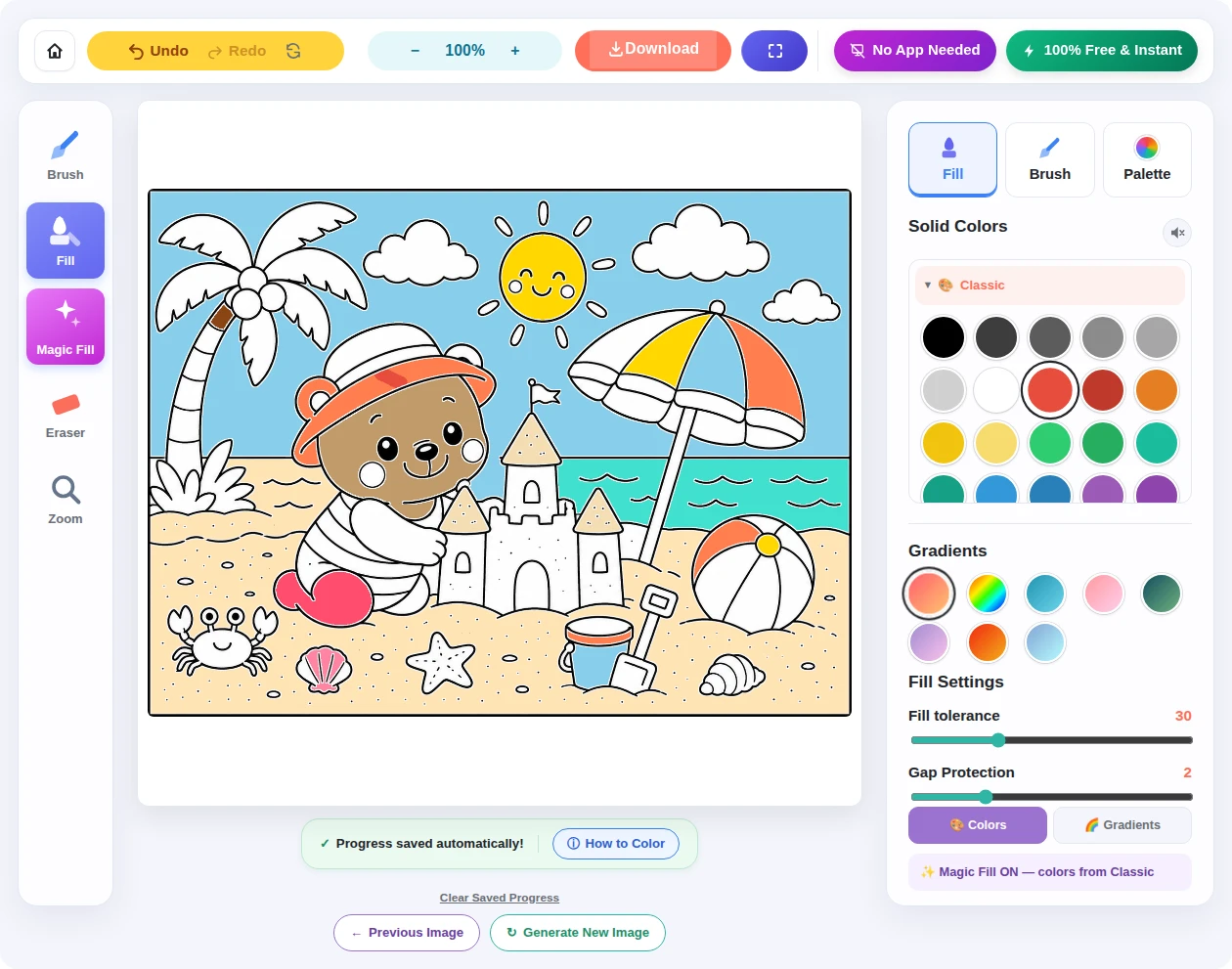
The editor is divided into three main areas so the most important controls stay easy to reach.

Top Controls
The top bar contains Undo, Redo, Reset, Zoom, Download, Fullscreen, and quick information about the tool.
Coloring Tools
The tool rail includes:
Brush · Fill · Magic Fill · Eraser · Zoom
On wider screens, the tools stay beside the canvas. On smaller screens they rearrange automatically to fit the available space.
Color Panel
The color panel contains your solid color palettes, gradients, custom colors, and settings for the currently selected coloring tool.
You can switch between Fill, Brush, and Palette without leaving the page.
Fill Large Areas Instantly
Fill is the fastest way to color most pages.
Choose Fill, select a color, then click or tap inside a closed area of the drawing. The tool detects the surrounding outlines and fills the space for you.
It works especially well for large areas such as clothing, animals, skies, vehicles, flowers, or simple cartoon shapes.
Fill Tolerance
Fill Tolerance controls how closely the fill tool follows the drawing’s lines.
A lower value is more conservative. A higher value can help reach tiny spaces but may also cross weak or unusually light outlines.
For most pages, the default value is the best place to start.
Gap Protection
Gap Protection helps prevent color from leaking through very small openings in an outline.
If a drawing has a tiny gap between two lines, increasing this value slightly can help keep the color inside the intended area.
If Fill colors too much of the picture, undo the action and try again with a lower Fill Tolerance or slightly stronger Gap Protection.
Draw Freely With the Brush
Choose Brush when you want to draw by hand instead of filling an entire enclosed area.
The Brush is useful for:
- adding small details,
- creating freehand patterns,
- coloring narrow spaces,
- adding decorative strokes,
- or giving a finished page your own personal style.
Brush thickness can be adjusted continuously from 1px to 40px.

Choosing a Brush Size
Use a smaller brush for details and a larger brush for bigger areas.
You can change the size at any time while coloring, so there is no need to restart the page when you want a different stroke width.
Remove Color With the Eraser
Select Eraser to remove brush strokes or other painted areas from the canvas.
The Eraser uses the same continuous size control as the Brush, so you can make small corrections with a narrow eraser or clear larger areas with a wider one.
Tip: If you want to return the entire picture to its original uncolored state, use Reset instead of erasing everything manually.
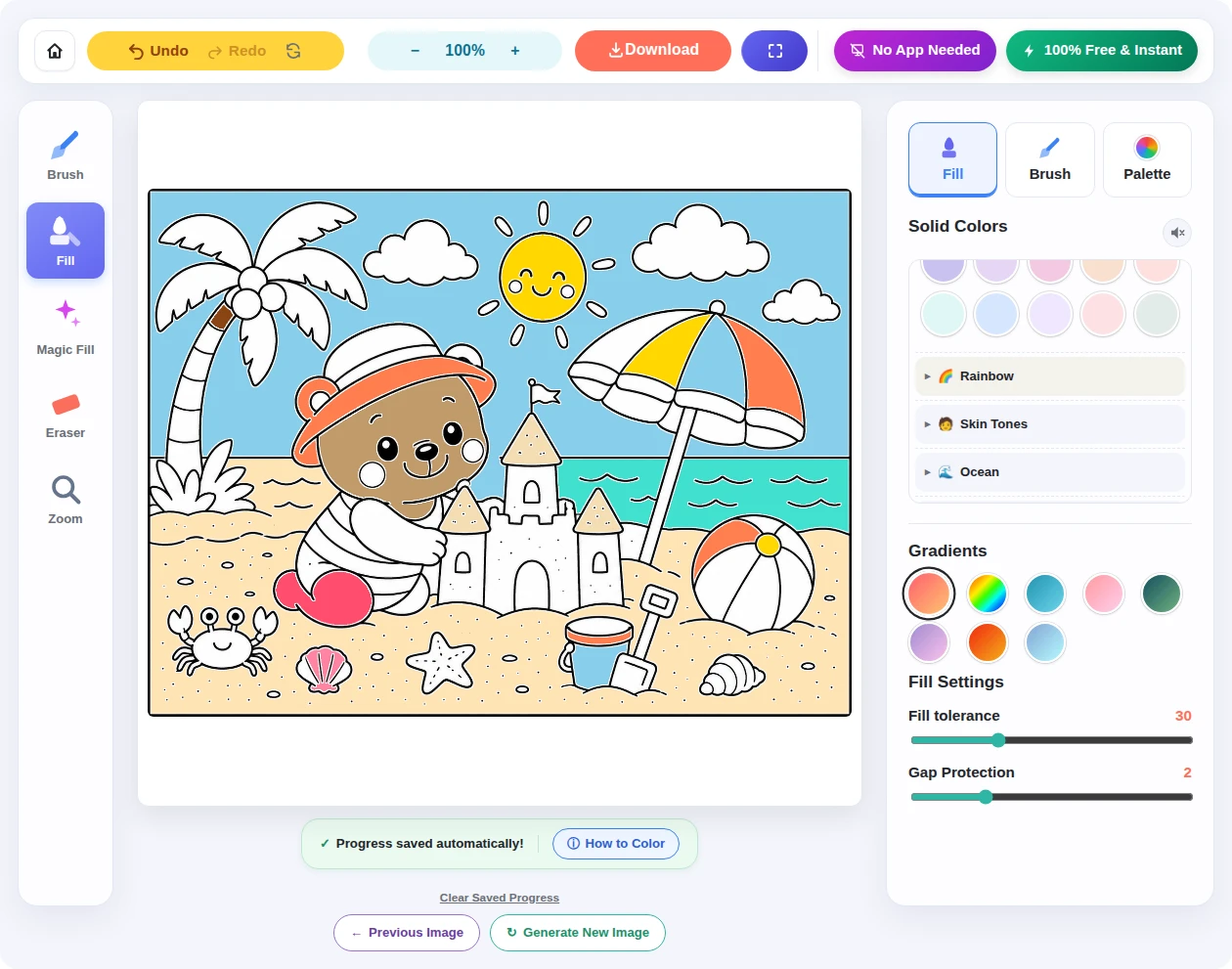
Choose From Solid Color Palettes
The tool includes themed color collections so you can quickly find colors that work well together.
Available palettes include collections such as:
Classic, Pastel, Rainbow, Skin Tones, Ocean, Nature, Candy, Spring, Summer, Autumn, Winter, Halloween, Christmas, Space, Festive, Tropical, Berry, Neon, Moonlight, and Cozy.
Only the active palette is loaded first, while the other groups open when you select them. This keeps the coloring tool fast even though hundreds of colors are available.
Custom Color
Want a color that is not already in a palette?
Open the Palette tab and use Custom Color to choose your own shade.
Your phone, tablet, or computer may display its own native color picker depending on the browser you are using.
Add Color With Gradients
Gradients blend multiple shades together and can make a page feel more colorful with a single click.
The current tool includes gradient presets such as:
Sunset · Rainbow · Ocean · Candy · Forest · Lavender · Fire · Ice
You can use gradients with Fill and Brush, not only with Magic Fill.
Try them on skies, balloons, clothing, planets, fantasy scenes, backgrounds, and other large shapes.
Create Surprising Combinations With Magic Fill
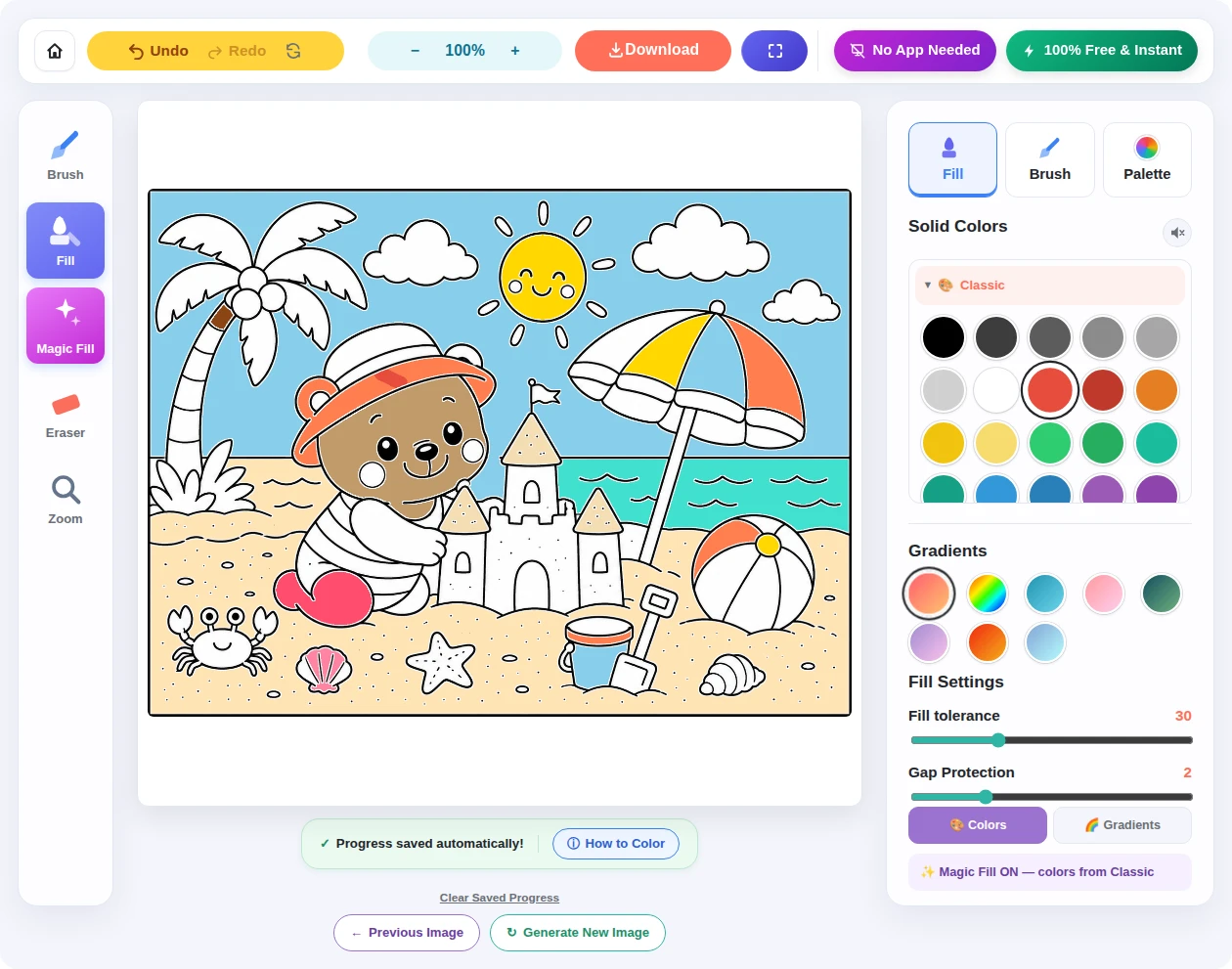
Magic Fill adds a more playful way to color.
Instead of choosing the same color for every click, Magic Fill can automatically choose colors from the selected color collection.
It includes two modes:
Colors
Magic Fill selects from solid colors.
Gradients
Magic Fill selects from gradient presets.
This works especially well when kids want to experiment without choosing each color one by one.
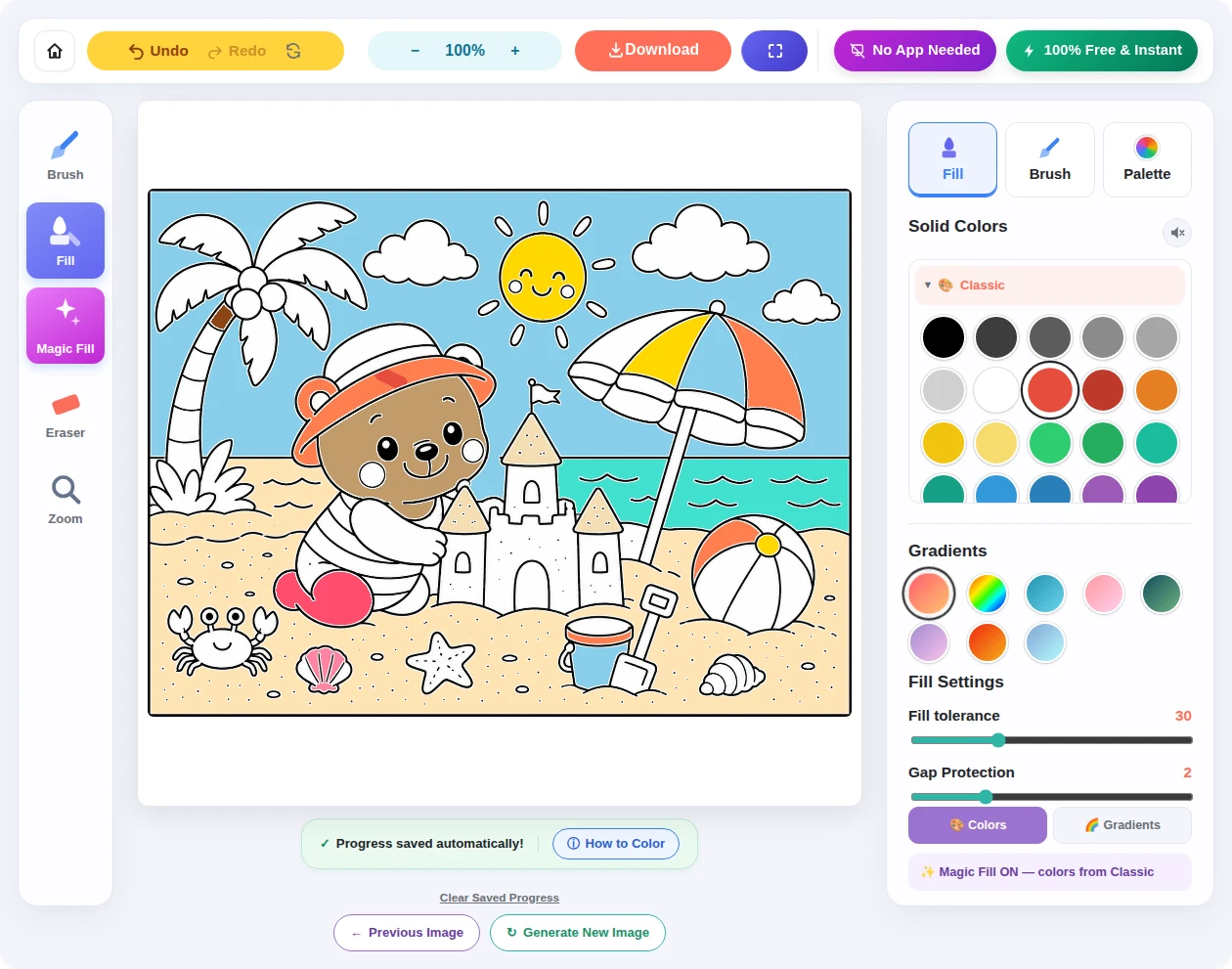
Magic Fill is designed for creativity rather than precise color matching. For a specific color scheme, use Fill or Brush and choose the colors manually.
Undo, Redo, and Reset Your Coloring
Mistakes are easy to fix.
Undo
Removes your most recent coloring action.
Redo
Restores an action you just undid.
The editor keeps up to 16 recent history steps.
Reset Image
Reset clears the current coloring from the canvas and returns the picture to its original line art.
Clear Saved Progress
This is different from Reset.
Clear Saved Progress removes the saved version stored in your browser for that coloring page.
Use it when you want the page to open fresh the next time you visit.

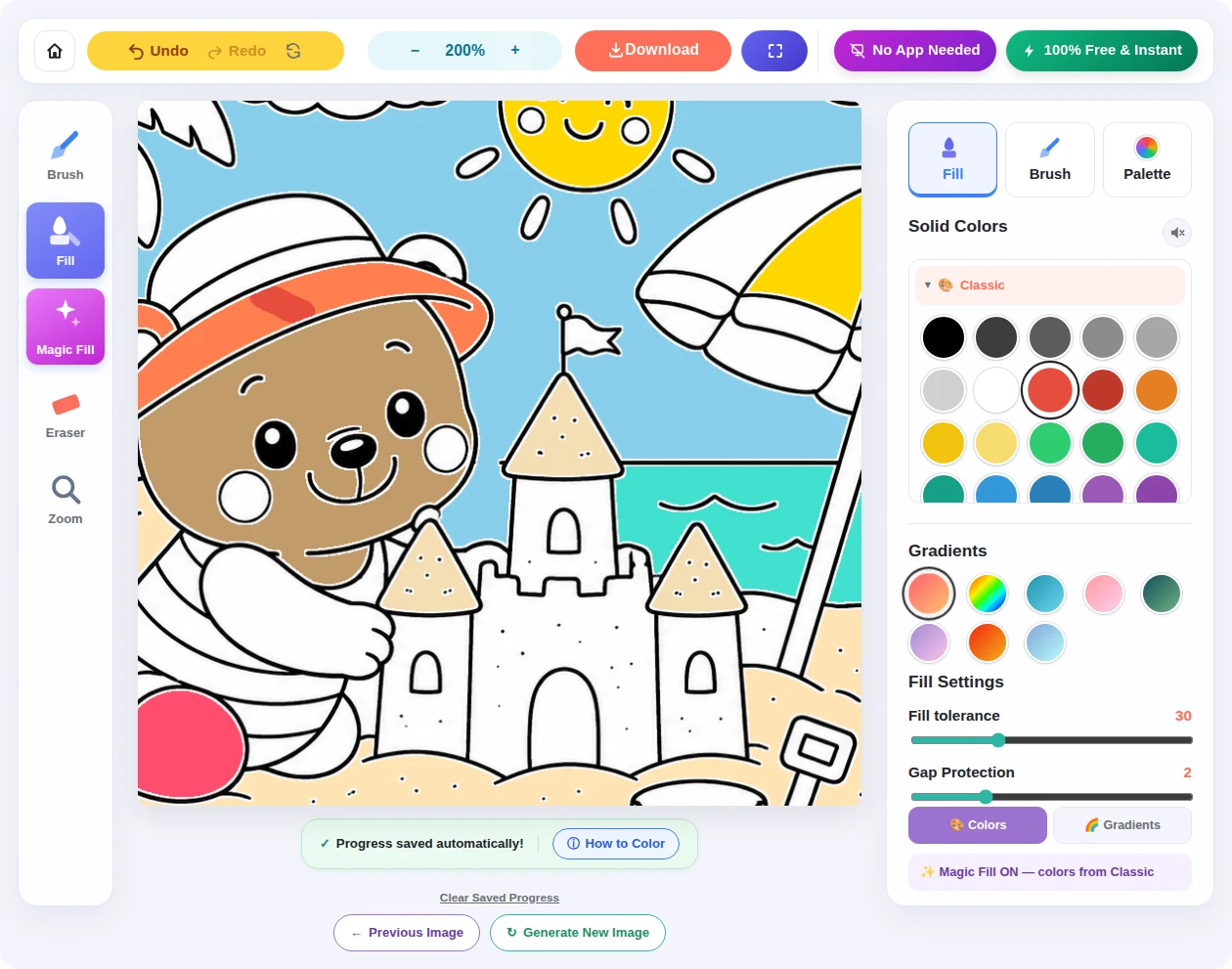
Zoom In for Small Details
Use the + and − controls to zoom the coloring page.
The canvas supports zoom levels from 100% to 400%, changing in 25% steps.
Clicking the current zoom percentage returns the canvas to 100%.
Moving the Page While Zoomed
When the canvas is zoomed beyond 100%, click or touch and drag to move around the drawing.
This makes it much easier to reach small details without reducing the size of your brush.
Use Fullscreen for More Coloring Space
Fullscreen mode gives the coloring canvas more room by expanding the editor across your display.
It is especially useful on laptops and tablets where the regular browser interface takes up part of the screen.
Click the fullscreen button again or use your browser’s usual exit-fullscreen command when you are finished.
Fullscreen availability depends on the browser and device. Some mobile browsers, particularly certain versions of iOS Safari, may limit the standard fullscreen experience.

Your Coloring Saves Automatically
CPForKids automatically saves your coloring progress while you work.
There is no Save button to remember.
The editor waits briefly after your latest change and stores the current version in your browser.
If you return to the same coloring page later using the same browser and device, your saved work may be restored automatically.
Where Is My Progress Stored?
Saved coloring data stays in your browser’s local storage.
It is not uploaded to a CPForKids account or cloud profile.
That means your progress may disappear if you:
- clear browser or website data,
- use private/incognito browsing,
- change browsers,
- or open the page on another device.
This local system keeps online coloring simple and does not require an account.
Download Your Finished Coloring
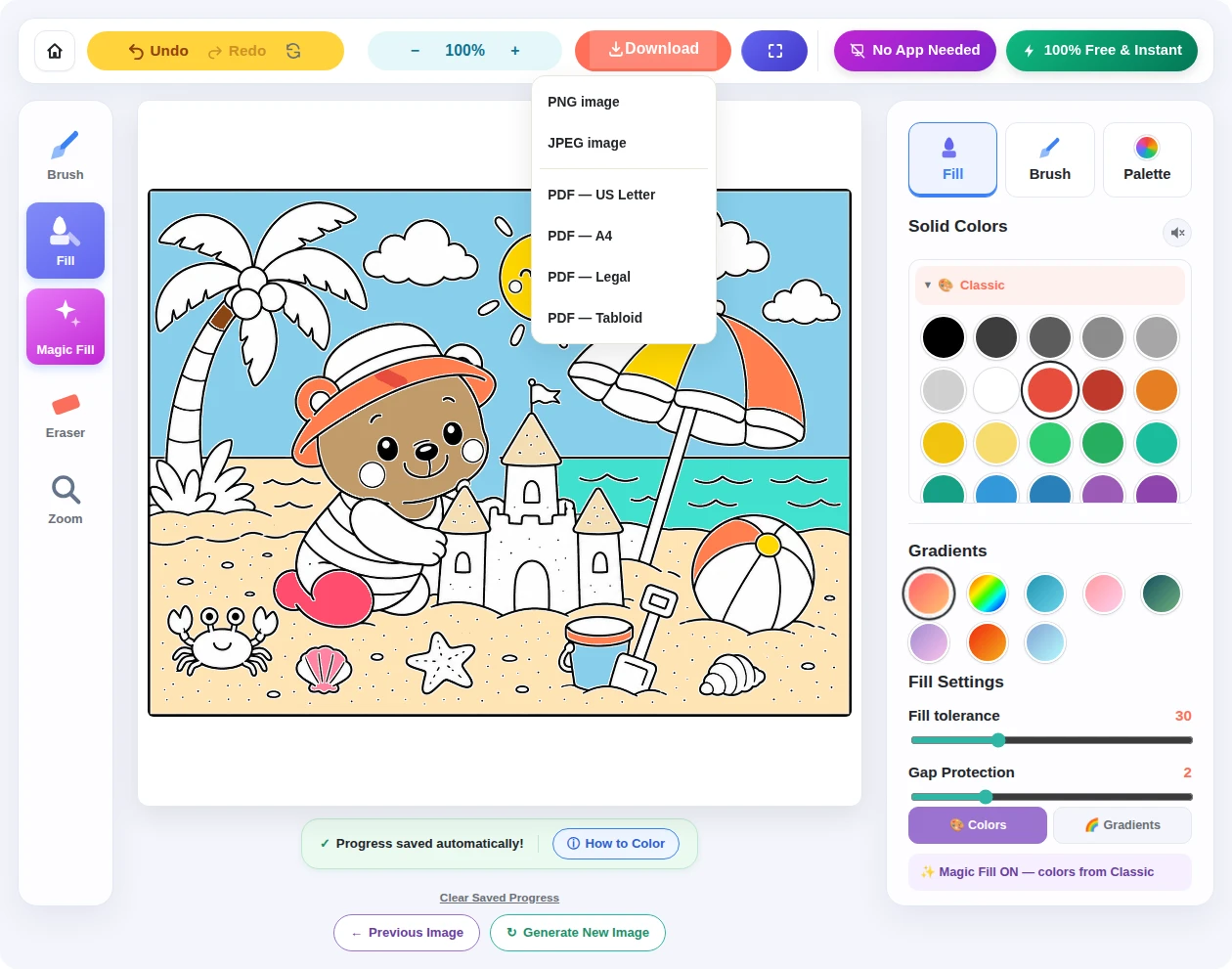
When your artwork is ready, choose Download from the top toolbar.
CPForKids currently provides several download options.
PNG
A lossless image format that works well for saving or sharing finished artwork.
JPEG
A widely supported image format with a smaller file size.
Download your finished artwork as a printable document.
Available PDF page sizes include:
US Letter · A4 · Legal · Tabloid
Color Online on Phones and Tablets
You do not need a computer to use CPForKids.
The coloring tool works with touch controls on phones and tablets, and the interface automatically rearranges itself for smaller screens.
Tap an area to Fill, drag your finger to Brush or Erase, and use the same palette and gradient tools available on desktop.
The tool uses modern pointer controls, which allows mouse and touch input to share the same coloring engine.

Mobile Tip
For detailed pages, zoom in before working on small areas. A larger view makes it easier to place fills and brush strokes accurately with your finger.
Find Another Page to Color
You do not have to return to the main hub each time you want something new.
Below the coloring canvas you may see:
Previous Image
Returns to the previous coloring page in the current collection.
Generate New Image
Loads another page from the same category.
For a bigger selection, visit Free Online Coloring Pages and explore all available themes.
Tips for Better Online Coloring
Start with the biggest areas first. Fill large backgrounds, clothing, or characters before working on small details.
Use Fill for speed and Brush when you want more control.
Try Gap Protection before increasing Fill Tolerance too far if color escapes through a small opening.
Use smaller Brush sizes when zoomed in.
Combine solid colors with one or two gradients instead of turning every area into a gradient.
If you do not like an experiment, use Undo instead of resetting the entire picture.
Magic Fill is especially fun when you are not sure what colors to choose.
And remember: there is no correct way to color a page. The tools are there to experiment with.
Troubleshooting
Fill colored more than one area
The drawing may contain a tiny gap or the Fill Tolerance may be too high.
Use Undo, slightly increase Gap Protection, or reduce Fill Tolerance and try again.
Fill did not reach a small area
Try slightly increasing Fill Tolerance.
My brush is too thick
Move the Brush Size slider closer to 1px.
My saved coloring disappeared
Auto-save is stored locally in your browser. Clearing browser data, using private browsing, switching browsers, or changing devices can remove access to the previous save.
I cannot move the canvas
Pan/move becomes available when zoom is above 100%.
Fullscreen does not open
Fullscreen depends on browser support. Some mobile browsers may restrict standard fullscreen mode.
The page looks too small on my phone
Use zoom to enlarge the area you want to work on.
Frequently Asked Questions About Online Coloring
Is CPForKids online coloring free?
Yes. You can use the CPForKids online coloring tool for free in your browser without installing an app.
Do I need an account?
No. You do not need to create an account or sign in before coloring.
Does my coloring save automatically?
Yes. Progress is saved automatically in your browser after you color.
Can I continue my coloring on another device?
Not automatically. Saved progress is stored locally in the browser and is not synchronized between devices.
How many times can I undo?
The tool currently keeps up to 16 recent history steps.
Can I use gradients with Fill and Brush?
Yes. Gradient colors can be used with Fill and Brush as well as Magic Fill.
What is the difference between Reset and Clear Saved Progress?
Reset returns the current canvas to the original line art. Clear Saved Progress removes the saved version stored in your browser for that page.
Can I color on a phone or tablet?
Yes. The editor supports touch input and has a responsive layout for phones and tablets.
Can I download my finished coloring?
Yes. Finished artwork can be downloaded as PNG, JPEG, or PDF.
Which PDF sizes are available?
The current download menu supports US Letter, A4, Legal, and Tabloid sizes.
Do I need to install an app?
No. The coloring editor works directly in a modern web browser.
Ready to Start Coloring?
Choose a page, pick a color, and create something of your own.
There is no registration, no app to install, and no special software required.
